A hands-on tutorial covering installation and the core user journeys: create buckets,
browse and search the corpus, host Git repositories on Gitea, and turn a corpus selection into a
ready-to-clone repository. Every screenshot below was captured live from the running UI with Playwright.
Prerequisites
Bun (the runtime; bun --version).
Docker — runs Postgres and (optionally) Gitea.
git on your PATH.
Postgres is the only required datastore. Gitea (used for Git hosting) is optional and runs
in Docker with its own embedded SQLite, so the "one Postgres" rule still holds.
Install & run
From the ke-simple checkout:
bun install            # dependencies
bun run pg:up          # start Postgres in Docker
bun run api --port 3000
Open http://127.0.0.1:3000/. The API and the web UI are served
from the same origin — no separate frontend build.
The UI is plain static files (web/index.html, app.js,
styles.css) served by Bun. There is no toolchain to install.
Connect Gitea (for Git hosting)
The corpus, upload, and search features work without Gitea. To create repositories and build repos
from a selection, start Gitea and point KE at it:
bun run gitea:up                      # dockerized Gitea (HTTPS transport, own sqlite)
eval "$(scripts/gitea-bootstrap.sh)"  # create an admin + token, export KE_GITEA_*

# restart the API with Gitea configured:
KE_GITEA_URL="$KE_GITEA_URL" KE_GITEA_TOKEN="$KE_GITEA_TOKEN" KE_GITEA_USER="$KE_GITEA_USER" \
  bun run api --port 3000
KE owns identity: it provisions Gitea users and per-user tokens behind the scenes, so a
user authenticates once and pushes over HTTPS as themselves.
1Create a bucket from local files
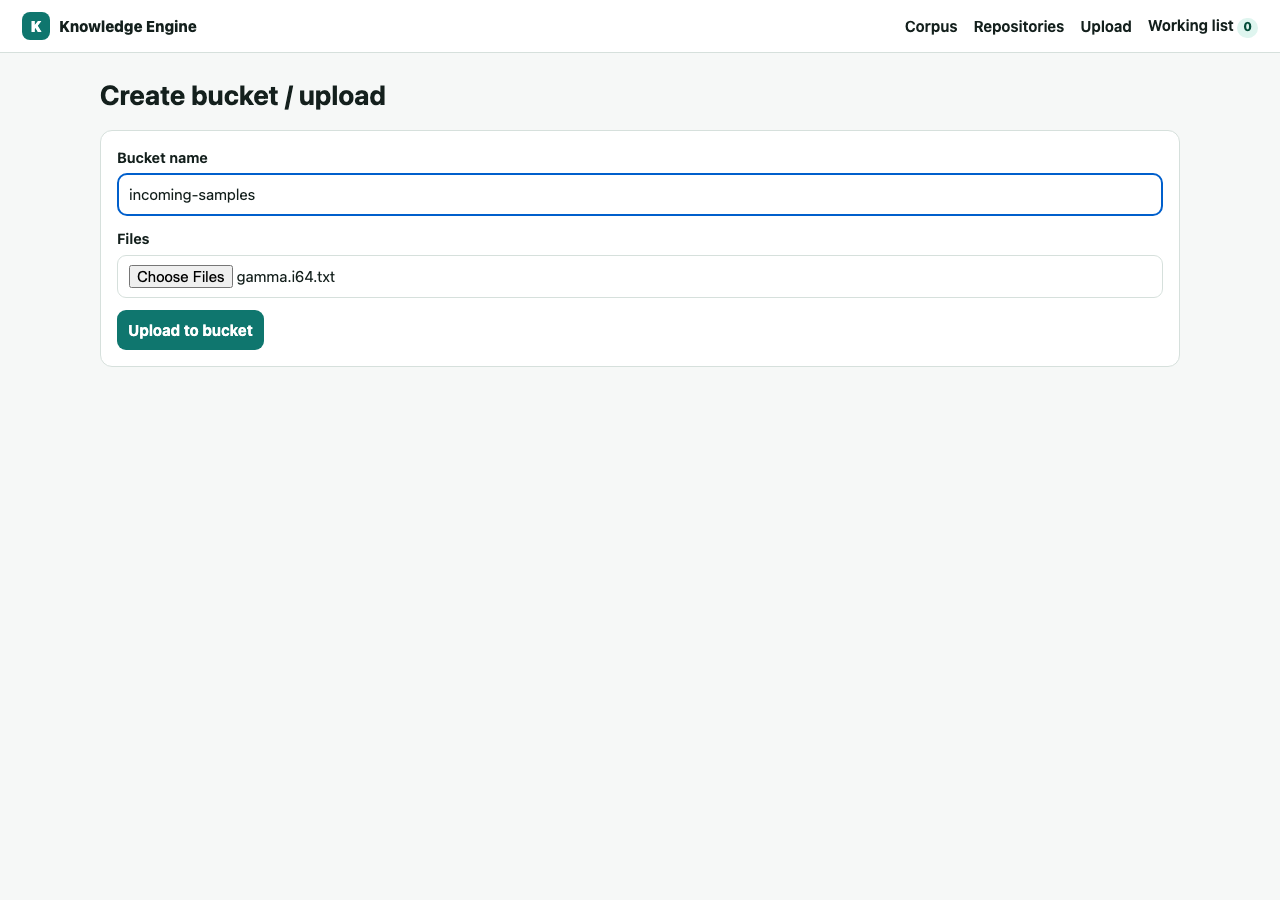
A bucket is a queryable collection. Go to Upload, name the bucket, and
choose files. KE stores each file content-addressed by SHA-256 and adds a location at
bucket/filename.
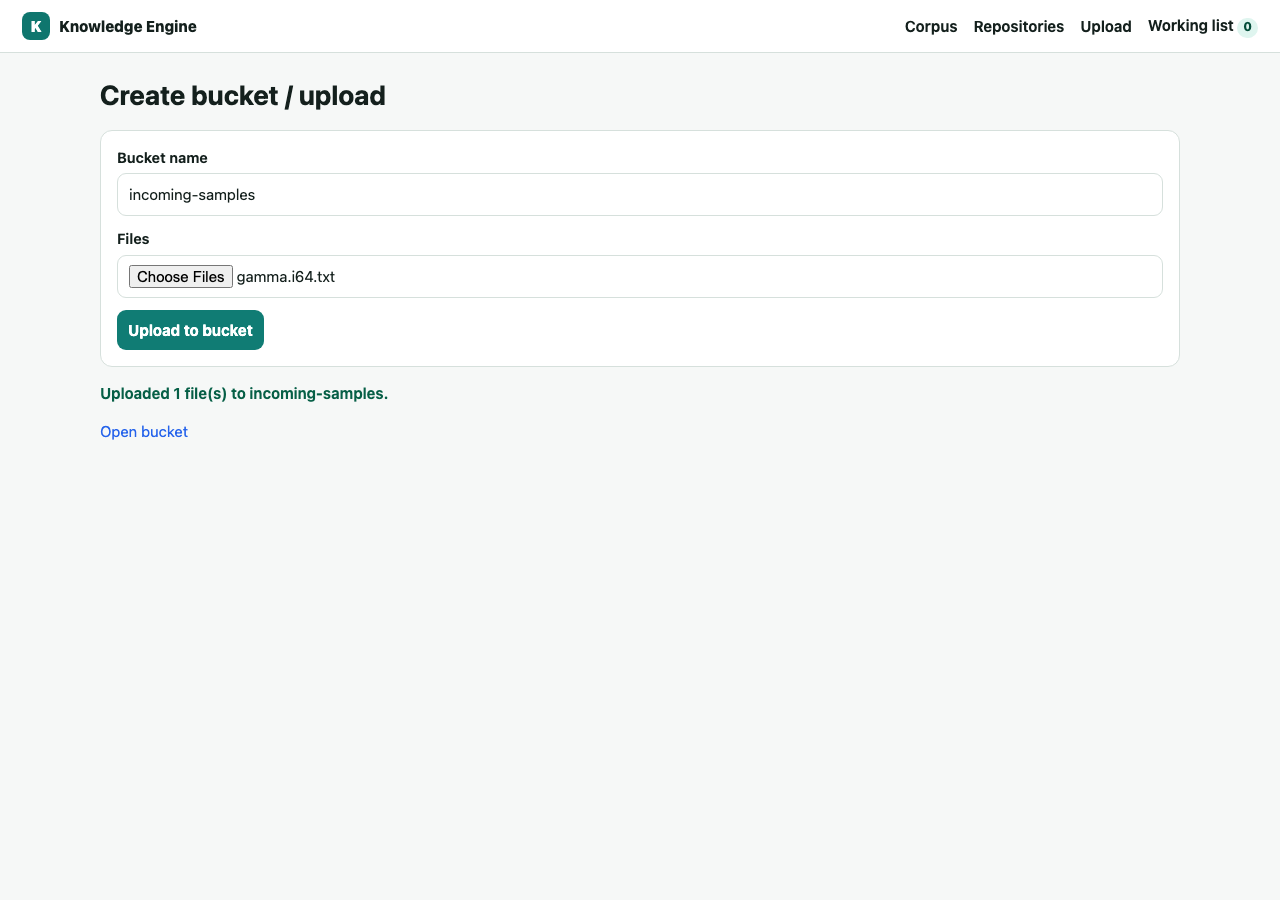
Naming a new bucket and selecting a file to upload.After upload, the bucket exists and is browsable.
2Browse the corpus
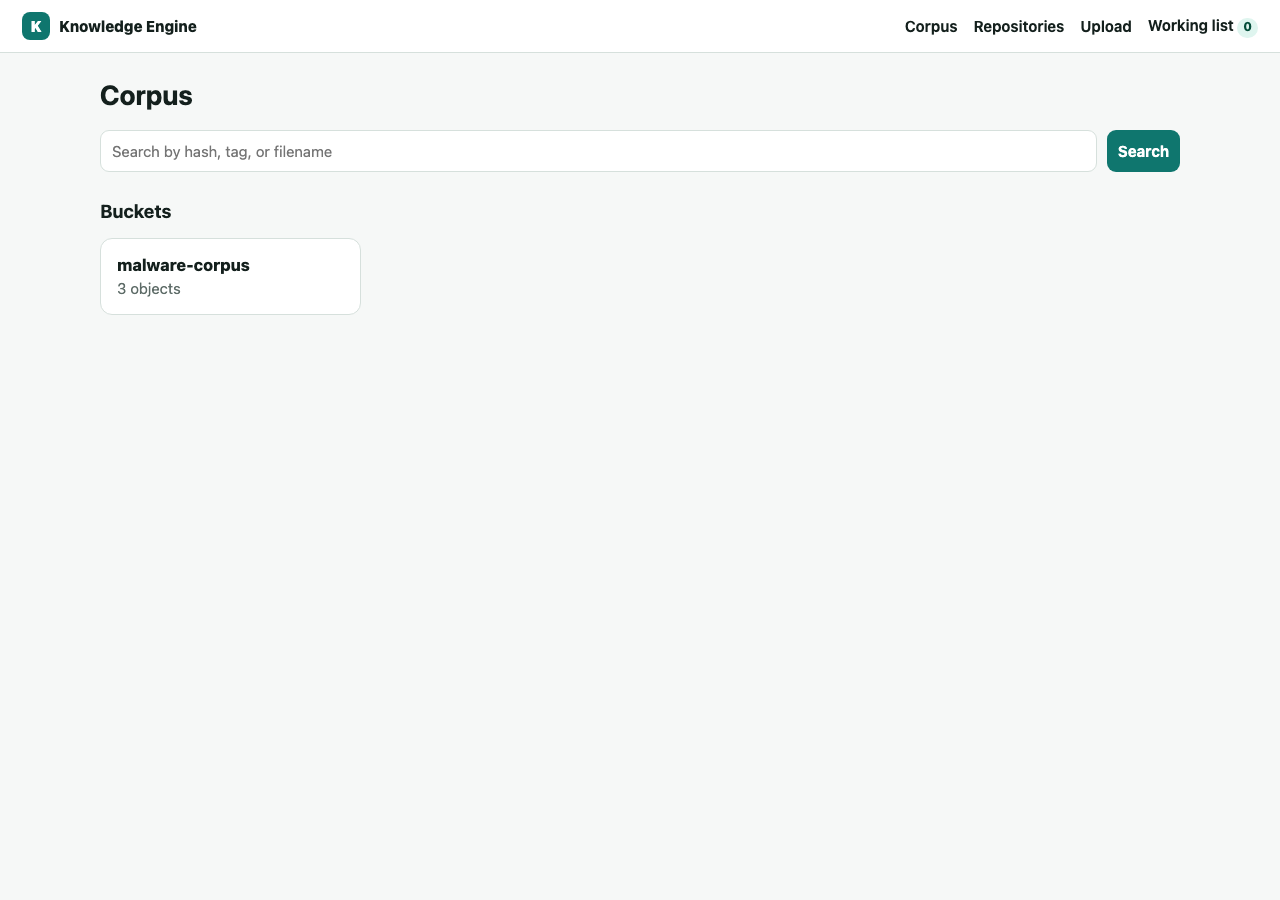
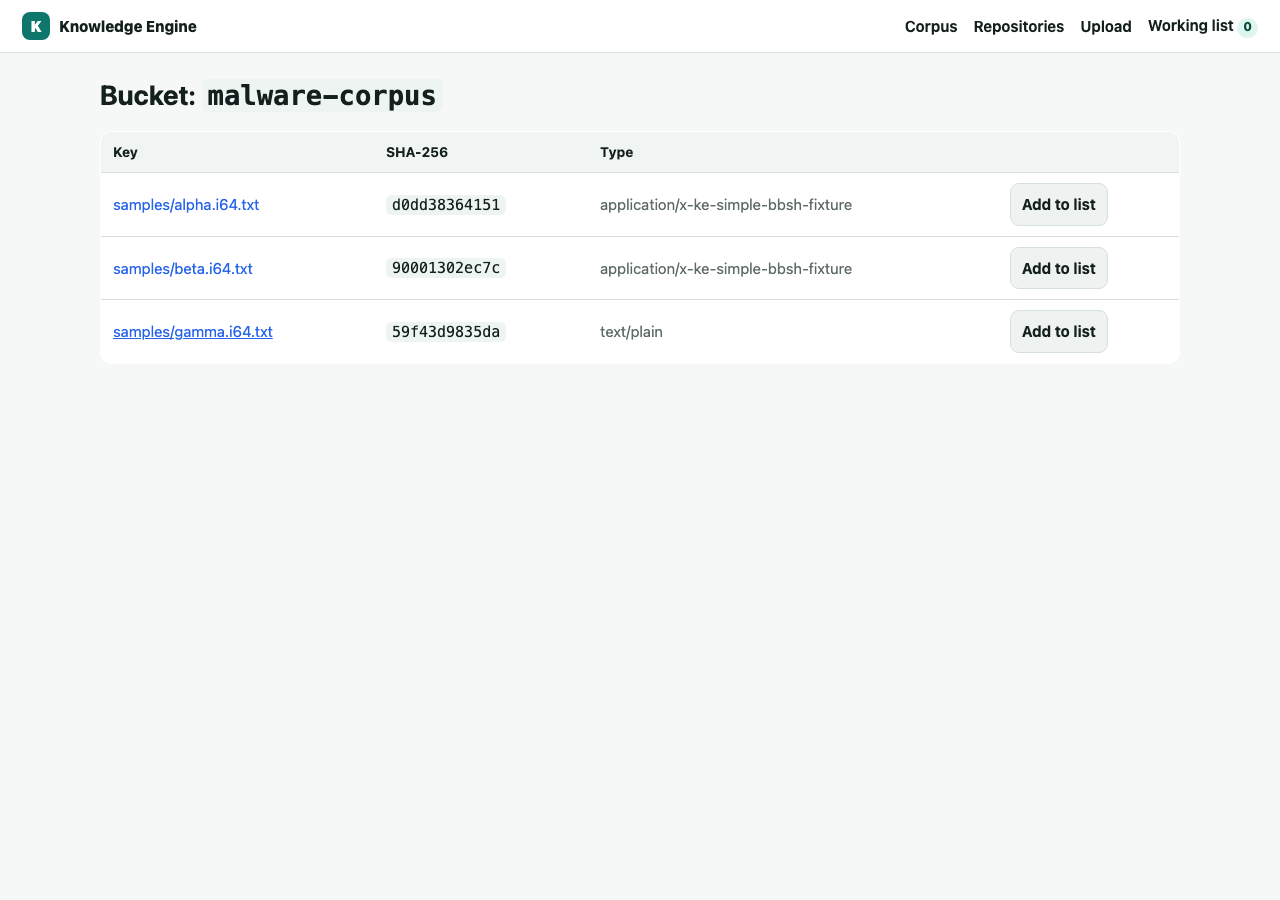
The home page lists every bucket with its object count. Click a bucket to see its objects; each row links
to the object's detail page and can be added to a working list.
Corpus home: buckets and a global search box.A bucket's objects — key, SHA-256, content type, and "Add to list".
3Search and inspect an object
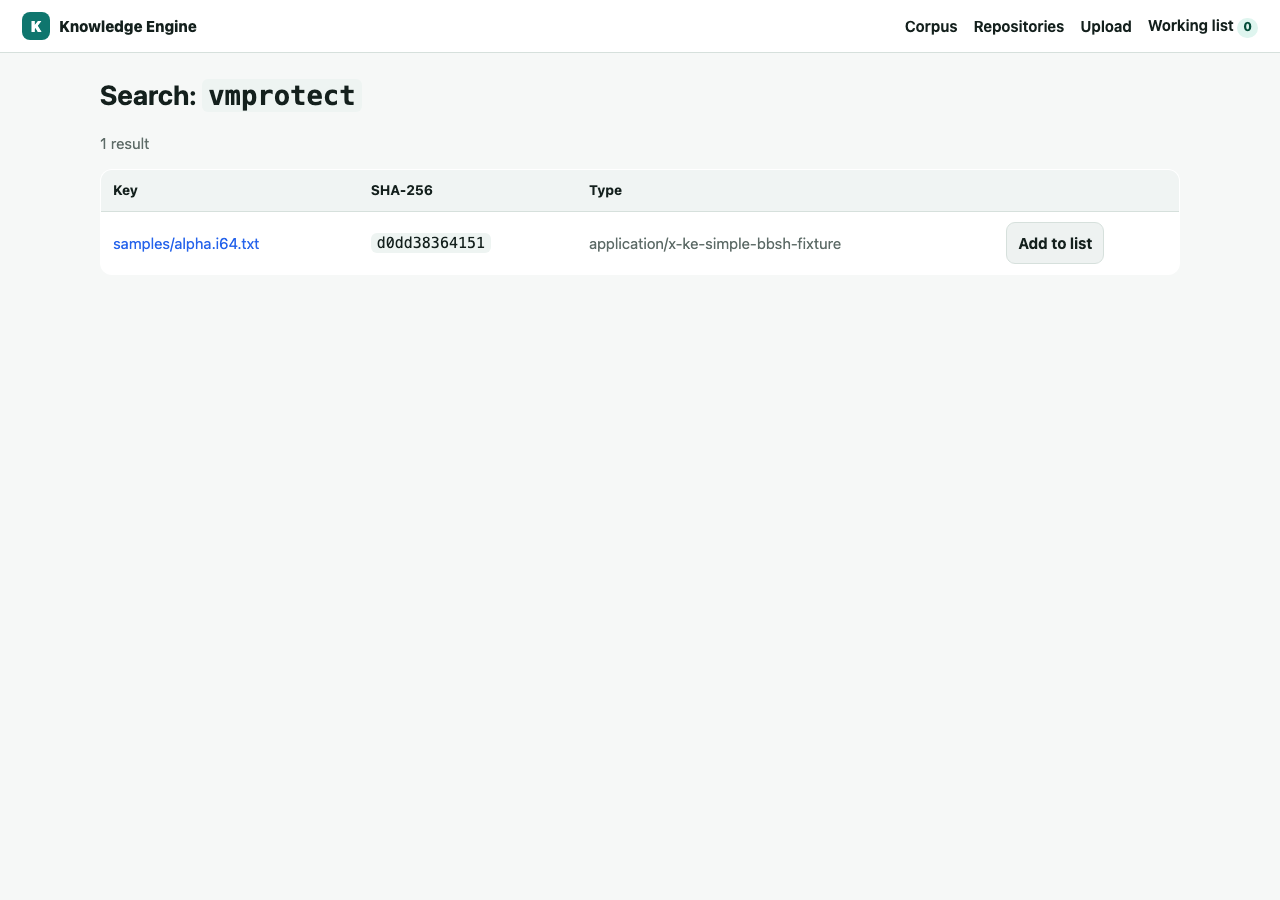
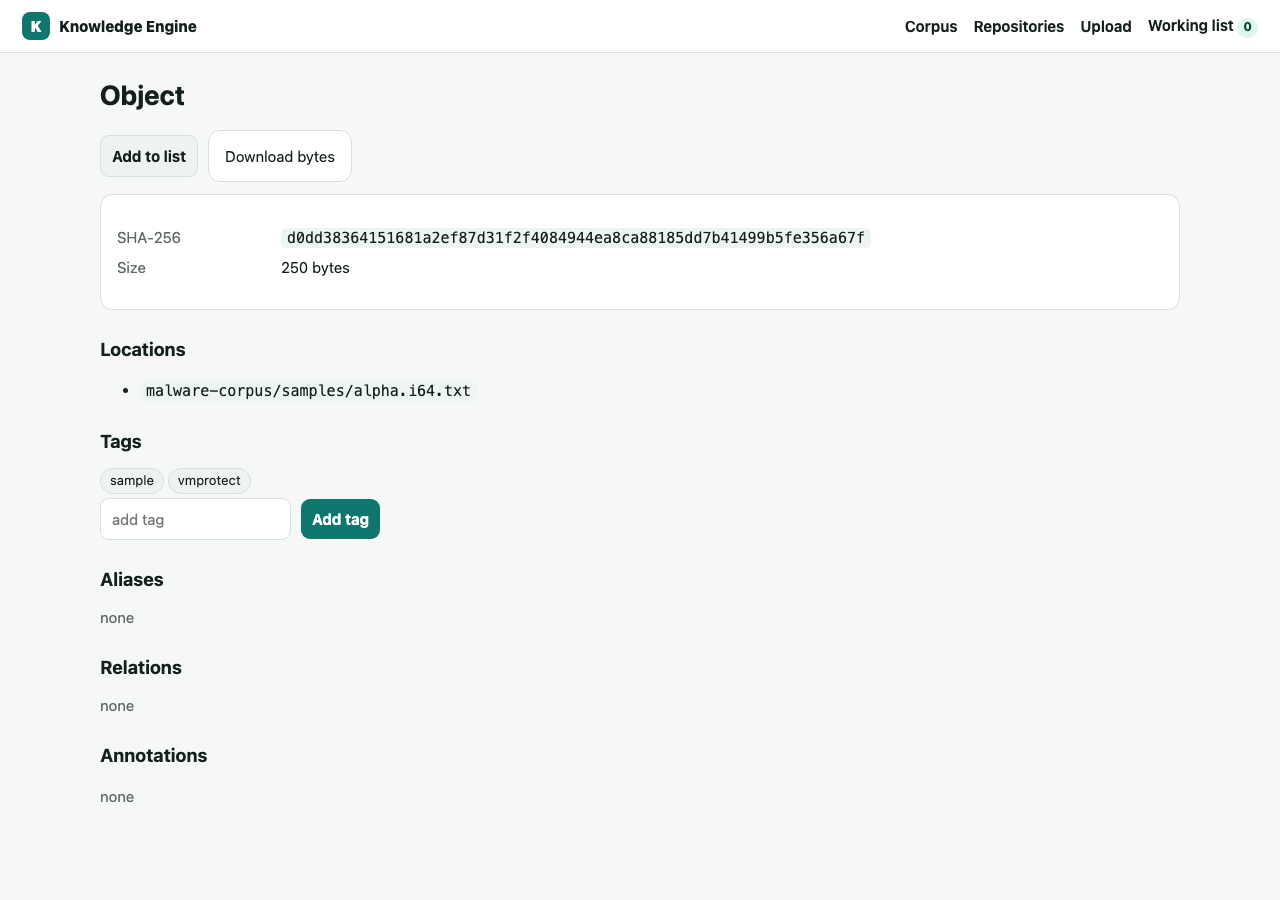
Search spans the whole corpus by hash prefix, tag, or filename. An object's detail page shows its identity
(SHA-256), every live location, tags, aliases, relations, annotations, and a direct byte download.
Searching by tag vmprotect.Object detail — identity, location, tags, download.
Automation can skip the UI entirely: GET /objects/<sha256>/content
returns the bytes by hash, no bucket/key needed.
4Host a Git repository and push
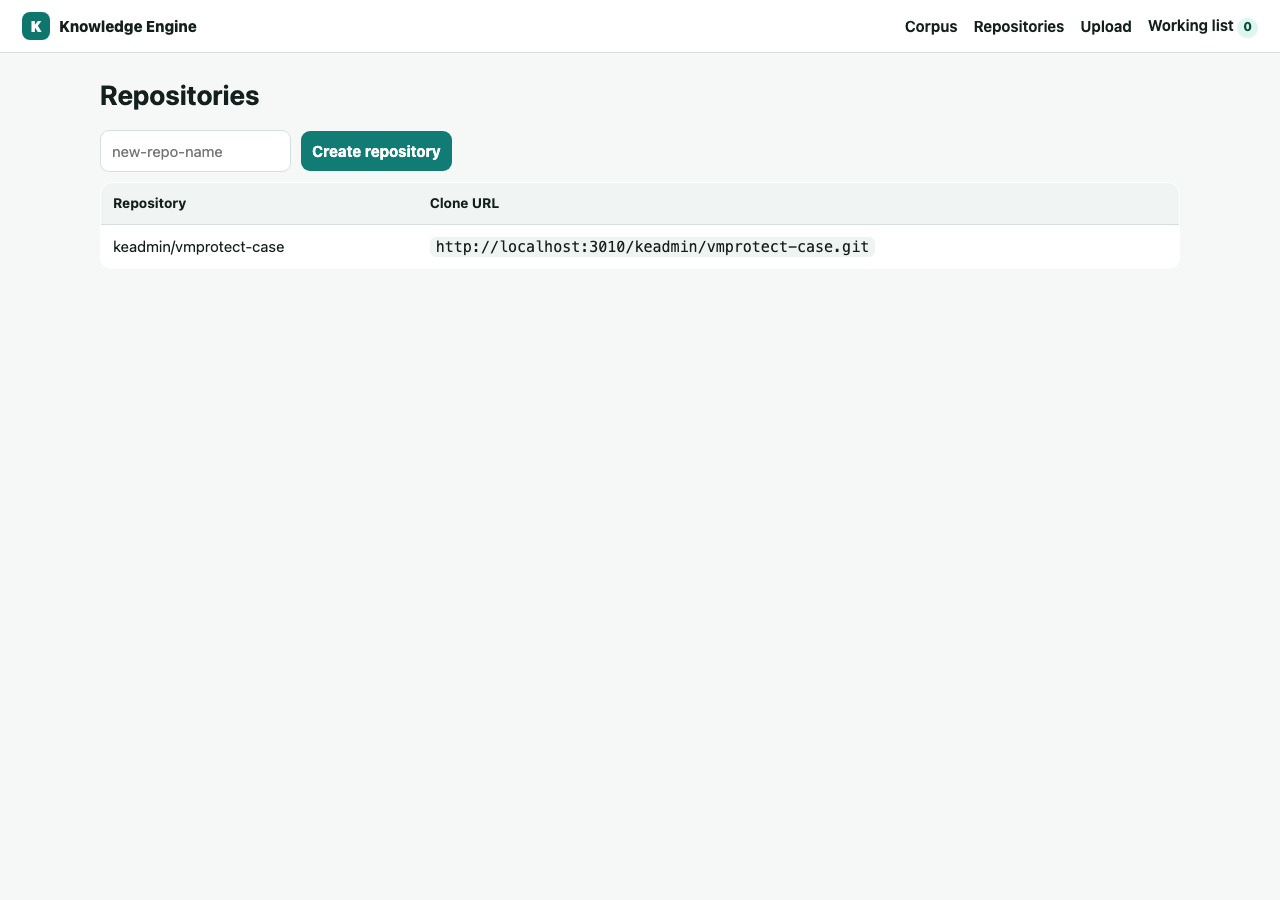
From Repositories, create a KE-hosted repo. The clone URL appears in the list.
A repository created through the UI, with its clone URL.
Clone it, add files, and push as you would with any Git host:
A push webhook projects the changed files into KE automatically (or run
bun run gitea:sync keadmin vmprotect-case). The optional .ke/actions.yml decides
which paths land in which bucket, with which tags, and which plugins run.
Repository organization is independent of bucket organization: one repo can feed several
buckets, and many repos can feed one bucket — the Actions rules decide.
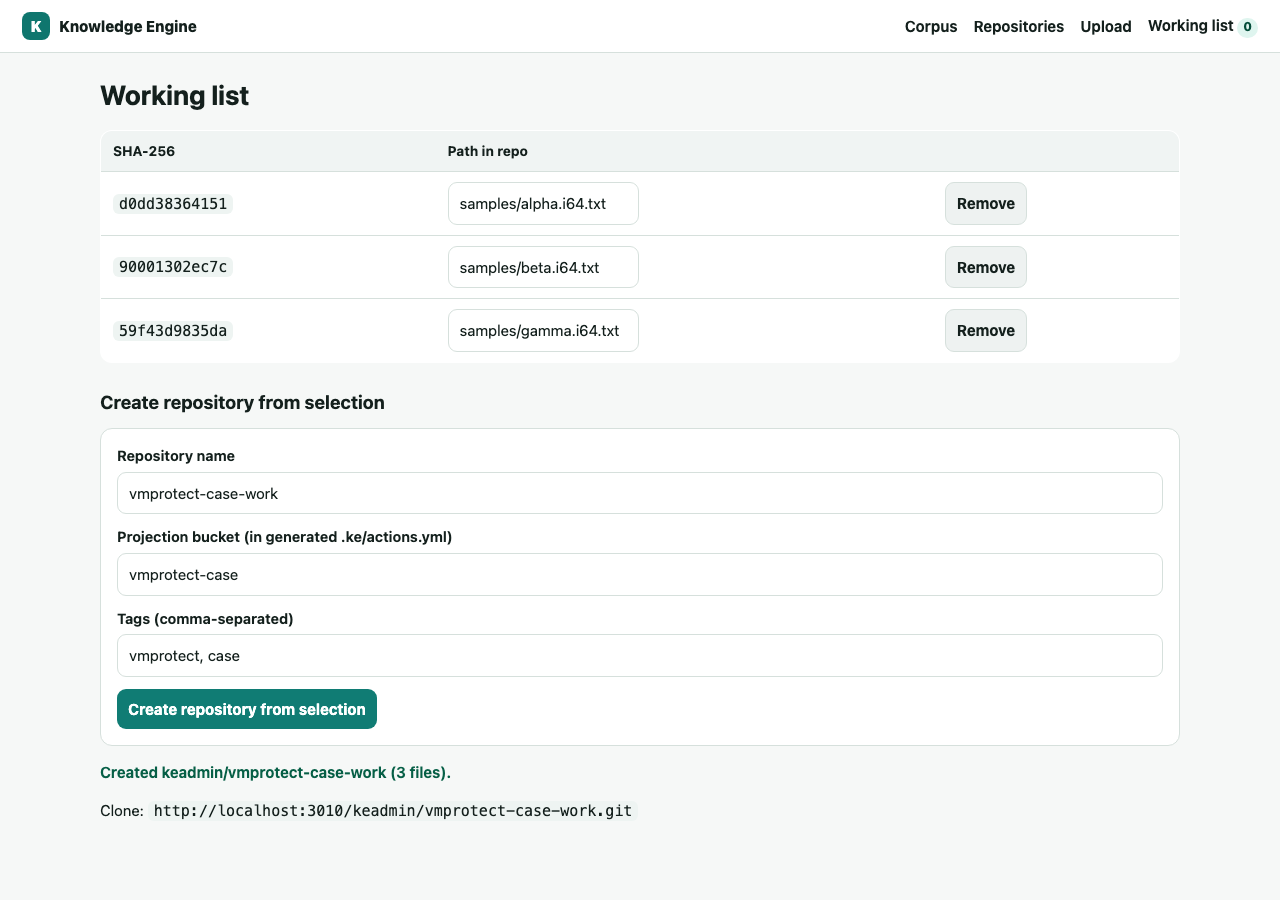
5Build a repository from a corpus selection
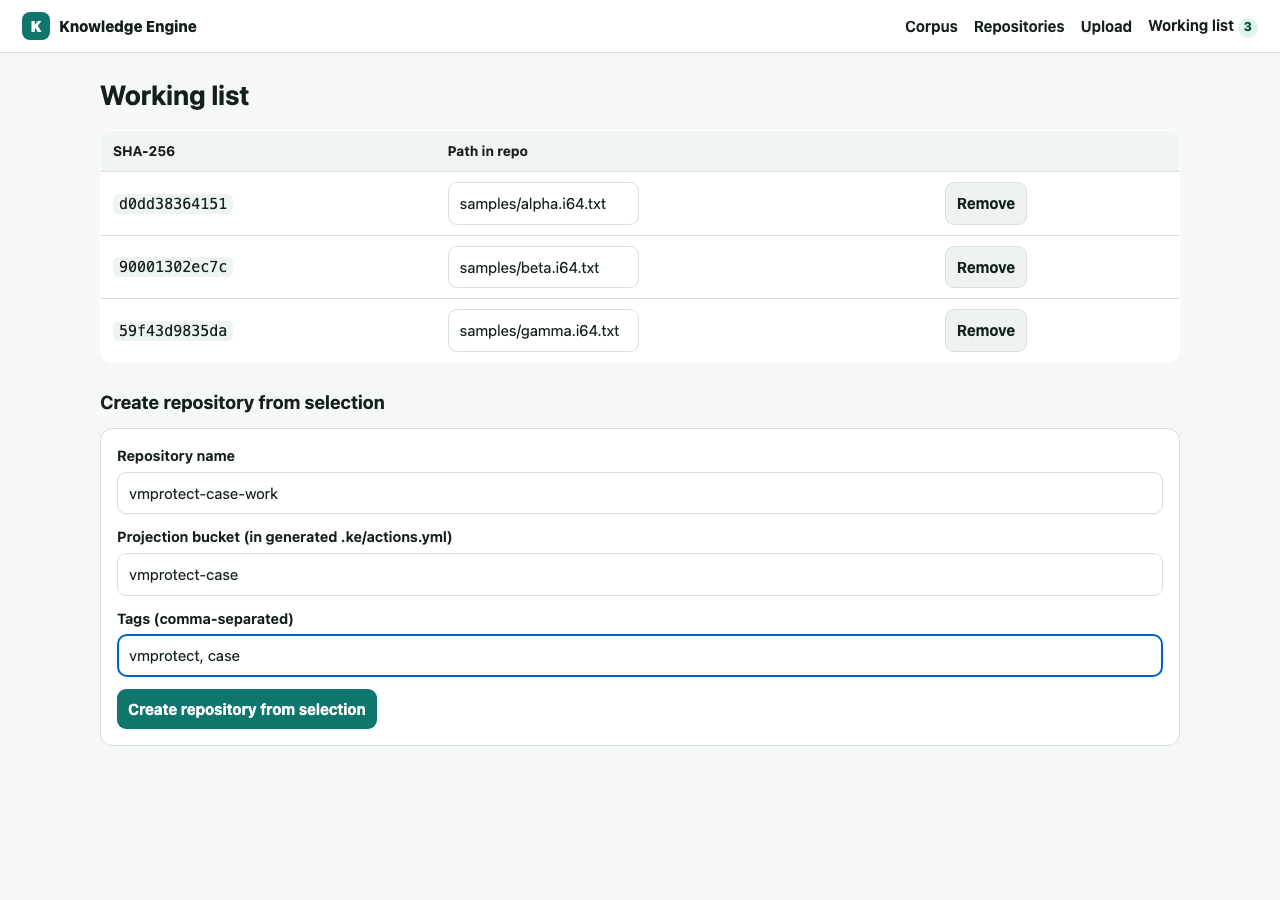
While browsing, click Add to list on the objects you want. Open the
Working list, set each file's path in the repo, name the repository, and create it. KE
materializes the selected objects into a fresh Gitea repo and writes a matching .ke/actions.yml.
The working list: selected objects, editable paths, and the create form.The repository is created and pre-populated — ready to clone.
The generated .ke/actions.yml means later pushes to that repo project straight
back into the corpus.